Email Setup
You can access the Email Setup directly from the Search action or via the Assisted Setup:
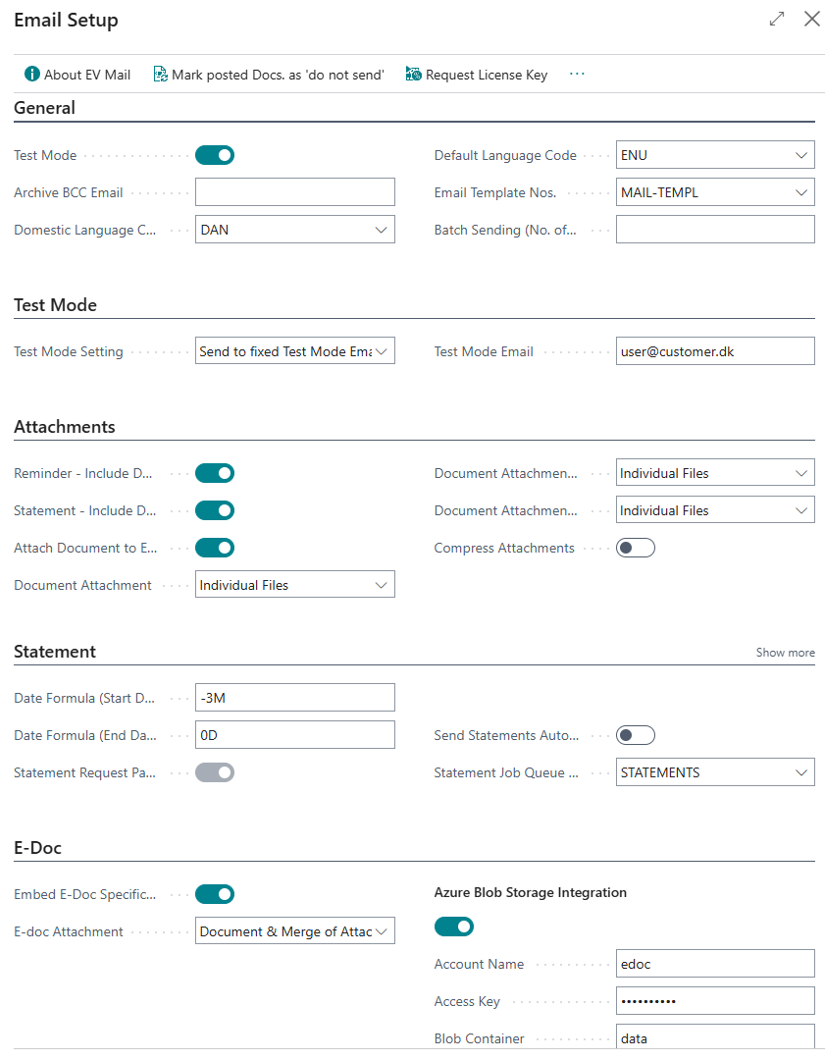
Overview of the General Setup
In the Email Setup you configure the General Setup for EV Mail and below is an overview of each setup field.
Test Mode Setting values and meaning:
Not Enabled (No emails are redirected. Standard setting for live environments)
Enabled (Redirect emails sent via EVMP to the email address defined in User Setup of current user or to a fixed test mode email address depending on the Test Mode Setting)
Test Mode Setting defines if Test Mode is activated, that emails are to be redirected to either the sending user or a predefined test mode email address.
Test Mode Email is used as a predefined test mode email address if Test Mode Setting is set to Send to fixed Test Mode Email address.
Archive BCC Email will send a BCC email copy to the email defined in this field.
Domestic Language Code and Default Language Code are used in the following way:
Emails, incl. attachments, will be created in the Language Code of the Email Template. If no Language Code is specified on the Email Template, it will use the Default Language Code from the Email Setup. If no Default Language Code has been specified, it will use the language from the user that initiated the action.
The exception to the rule is that if a language extension has been installed matching the Language Code on the Document, then the system will always use this for report printing (both paper and as body layout in emails) and for email attachments. Microsoft does not allow us to override this. So, in case you choose install a language extension, e.g. German on a Non-German localization, we advise you to also setup an Email Template for the German Language Code to ensure full consistency in both Email body and attachments.
Email Template Nos. is the number series to use for creating new Email Templates.
Attach to Email is a company-wide setting that controls if attachments added via the Document Attachment factbox, should automatically be marked with Yes in the following fields:
Attach to Email
Sales Flow to Trx
Purchase Flow to Trx
For customers and sales documents, the system will use the setting Attach to Email on the Customer Card if Advanced Email Settings is enabled for the customer in question, if not the system will use the company-wide setting from the Email Setup.
Embed E-Doc Specification is a field that will embed the PDF edition of the Sales- or Service Invoice/Credit Memo into the PEPPOL or OIOUBL file.
E-doc Attachment is a field that controls if and how attachments should be handled in OIOUBL electronic documents. Note: the OIOUBL and PEPPOL format only supports PDF files as attachments hence other file types will be ignored in the attachment handling process.
Azure Blob Storage Integration holds the fields needed to connect an Azure Blob Container in which the electronic documents can be uploaded. Furthermore, it is possible in the Electronic Document Formats setup page to specify an Azure Blob Storage Folder per electronic document format, if files need to be placed in different folders e.g. one folder for OIOUBL files and another for PEPPOL files.
Reminder – Include Documents will determine if the Document(s) that is part of the Issued Reminder Document should be attached to the email. This attachment will be zipped to reduce the file size of the email.
Statement– Include Documents will determine if the Document(s) that is part of the Statement should be attached to the email. This attachment will be zipped to reduce the file size of the email.
The three “Document Attachment” related fields: Document Attachment, Document Attachment (Reminder) and Document Attachment (Statement) will control how files are attached to the Email and whether PDF Merging should be done. Options are:
Individual Files = Document, Template Attachments and Document Attachments are added as individual files.
Document & Merge of Attachments = Document and Template Attachments are attached as-is. Document Attachments of the File Type pdf is merged into one file. The filename of this is configured on the Mail Template.
Merge Document & Attachments = Document is merged with Document Attachments of the File Type pdf is merged into one file.
Document Attachments of a File Type not equal to pdf are always attached as-is.
The Document Attachment (Reminder) only applies to Reminders.
The Document Attachment (Statement) only applies to Statements.
The Document Attachment applies to all other document types that the once listed above.
The merge operation controlled by the “Document Attachment” fields can differ on Customer Level if you active the Advanced Email Settings on the Customer Card.
Compress Attachments will control if attachments are to be zip-compressed. This operation will however only occur if no. of attachments is more than one.
Batch Sending (No. of Documents) will determine the maximum no. of Document(s) that is processed in the batch Send Posted Documents.
Email Statement Setup
In standard Business Central you call the Customer Statement report, set your options/filters and define your Output Options (Email, Print, Preview etc.) and press OK to start the processing based on your selection.
Below is an example of a standard Customer Report Request Page:
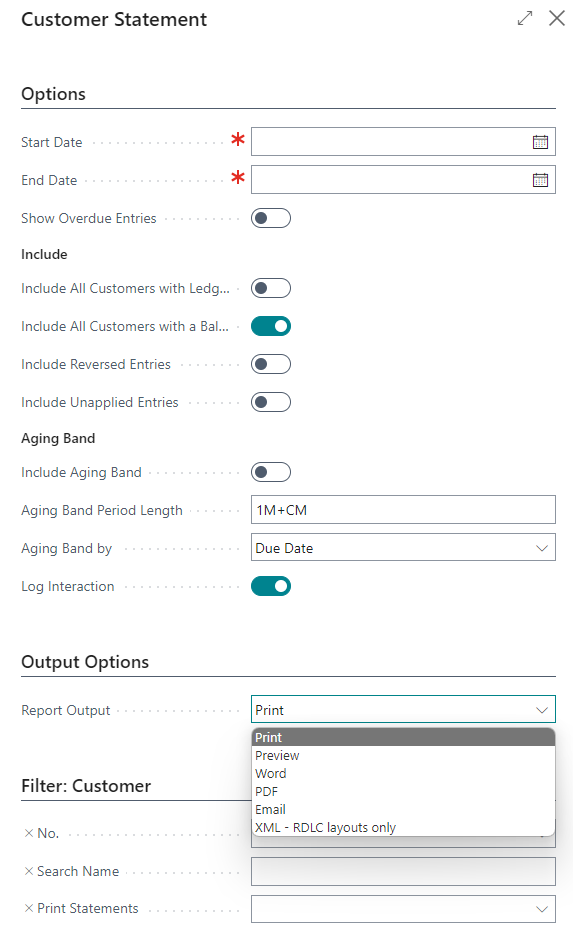
When EV Mail is installed, the standard Output Option Email is disabled!
EV Mail has since version 3.7 a separate batch that must be used for emailing statements.
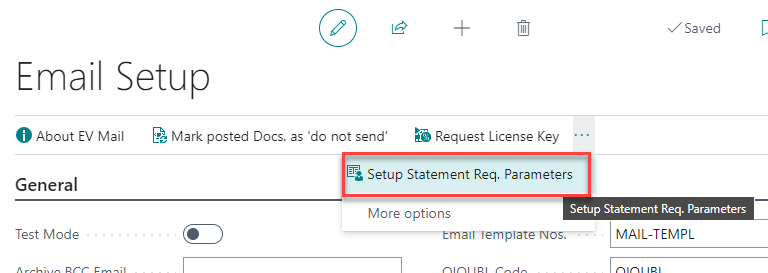
To set up the Customer Statement Report for emailing, click on the action called Setup Statement Req. Parameters in the Email Setup define the Options and Filters:
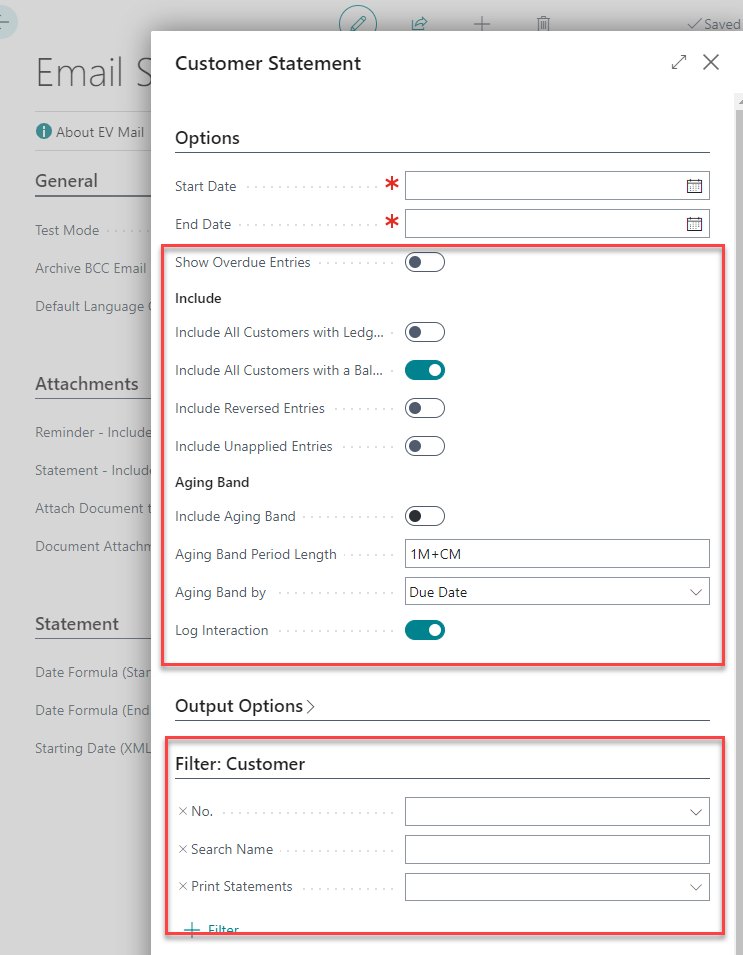
Please note that the following statement related parameter fields must also be configured in the Email Setup.
Required Setup fields:
Date Formula (Start Date) defines how the system should automatically calculate the Start Date of the statement period when emailing statements.
Date Formula (End Date) defines how the system should automatically calculate the End Date of the statement period when emailing statements.
Optional and advanced setup fields
The fields described ending with (XML) below are only relevant if you are using FORNAV Statements or have made a custom Statement report which is using a different naming syntax for the fields on the Request Page of the Statement report compared to the standard Business Central Statement report from Microsoft.
Start Date (XML)
End Date (XML)
Print All Having Entries (XML)
Print All Having Balance (XML)
Document Date (XML) is only relevant for FORNAV reports.
To assist in populating these technical fields, two new actions have been added to the Email Setup:
Show Statement XML Request Parameters will show a list of fields used on the Request Page of the Statement record. These values can then be copy/pasted into the relevant (XML) fields shown above.
Inject FORNAV reports XML Settings the action will populate the (XML) fields listed above based what is being used in the FORNAV Customizable Report Pack version 8. The populated values should always be validated and tested.
Send Statements Automatically will if enabled used Job Queue Entries to send statements. This setting enables the user to send customer statements in a single step. If disabled, the customer statements will be created with status “Created” in the Statement Queue.
Statement Period
Once the general company specific statement filters and options have been defined, the batch Email Customer Statement must be used to email statements. This batch will use the filters/options defined via the Email Setup and will dynamically calculate statement period based on the Date Formula (Start Date) and Date Formula (End Date) fields.